Streaming practice 2 (livestream mechanics, final check)
This livestream teaching practice adds in the actual livestreaming practices compared to the previous practice. We do final verification and practice of:
Screenshare layout, size, etc.
Audio quality
Smooth beginning of each segment
Use of the instructor control panel
Expected outcomes of this session
You have done a test with screenshare and audio. Someone confirms it looks good.
You understand the stream mechanics and what to expect when going live and un-live. You have practiced it once.
(optional) You understand the basics of the control panel.
First things (while we are getting ready)
Do these once you join the session or right before.
Arrange your screen for the proper vertical layout and looking good for learners.
Ensure your audio is as good as it can be.
Open the instructor status panel that the broadcaster sends you.
Open the Notes document.
The stream status display / control panel
This is used for non-verbal communication between instructors.
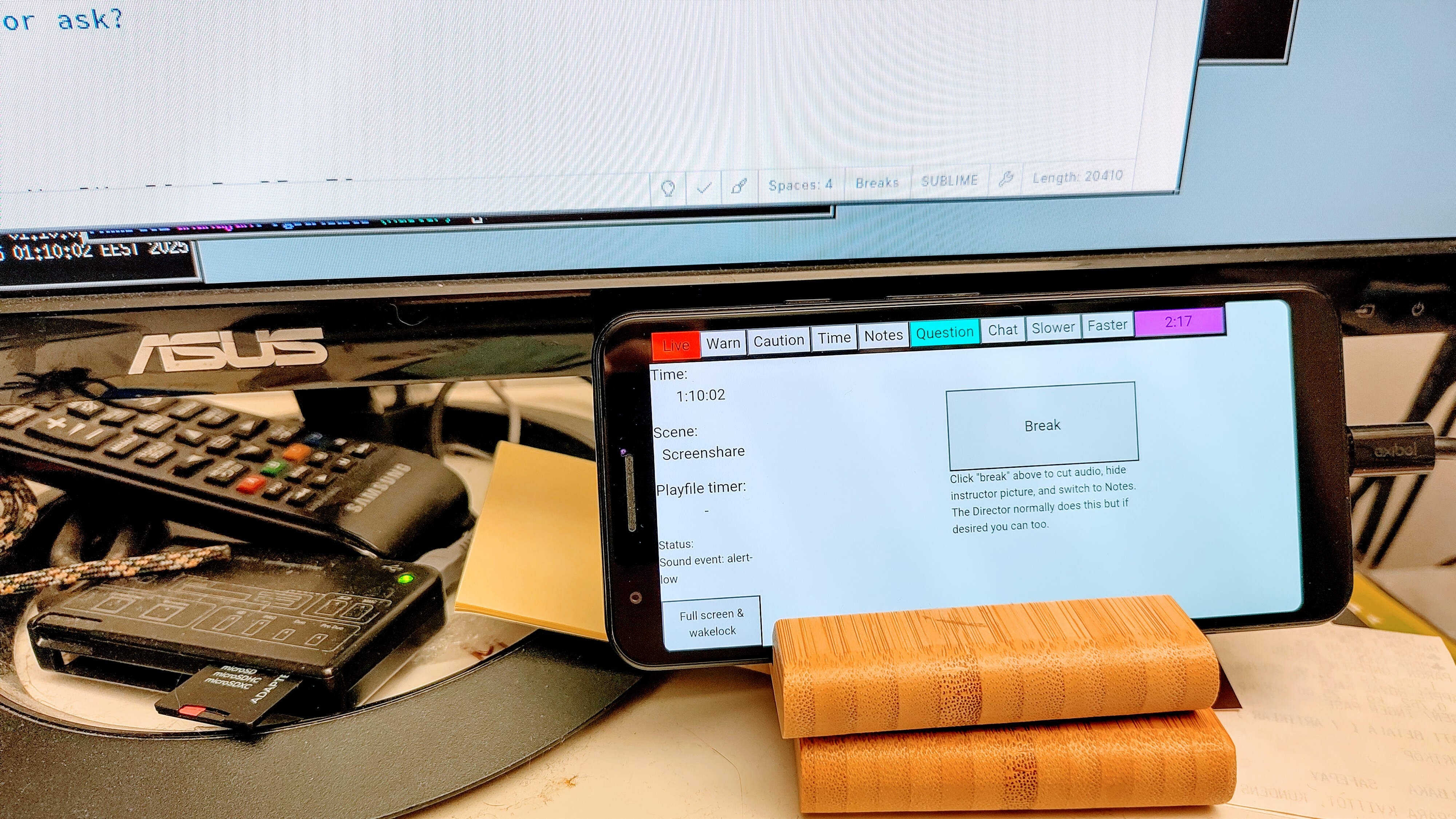
The instructor version of the control panel, running on a phone. Click the “Fullscreen & wakelock” to make it full screen and not powersave.
“Live” red square (top left) lets you know you may be visible to the audience
The other buttons (from “Warn” to “Faster”) can alert you to other conditions.
The purpose square in the top right is a session countdown. It turns purple as you get towards the end.
“Break” will end the session (the broadcaster usually does this but you can)
There are some sound effects for different events.
Going live
This is a refresher to the exercises we have done in the last session. Remember to:
Confirm what you will do next.
Ask everyone else to turn off their screens.
Decide who begins (says “hi”).
Broadcaster begins countdown “3… 2… 1… [breath]… [you can begin]”
What is new:
You have a control panel you can run in your web browser that will show what the stream status is. It should also beep a countdown to beginning, and will confirm once thing are showing.
You can set a countdown in the control panel. Set an end time by entering
@35, to, for example, end the countdown at the nextxx:35
Going to a break
Remember to tell the audience what to do during the break
Remember to say “bye” for the broadcaster to turn off the stream
You can also click “Break” on the instructor status panel.
Do a quick debrief before you take your own break.
What is new:
The control panel will beep when you go un-live, and you can also verify status that way.
Alerting to a problem / using the control panel
If you need to communicate something to an instructor, you can push one of the indicator lights on the control panel.
It will highlight and play a sound for instructors. They can respond to it when it fits the lesson.
Other practice
You may decide if you want to practice Q&A, teaching, going to exercises, etc.
What’s next
Enjoy teaching!